


How about having your podcast list automatically organized by content? Say hello to Smart Folders! Available now on Android 7.85, iOS 7.85, and coming soon to web, our Smart Folders feature takes all your followed podcasts and groups them into folders based on their content.
Why Smart Folders?
Smart Folders will revolutionize the way you manage your podcast library! Your podcasts will automatically be grouped by content, so you’ll never waste time searching through endless shows to find what you’re looking for. Everything you love will be neatly organized and easy to access. It’s the perfect way to keep your podcast list tidy. But don’t worry, if you’re not a fan of some suggestions or want to make adjustments, you can easily edit your folders just like you can with the ones you create.
How to use this feature?
For free users
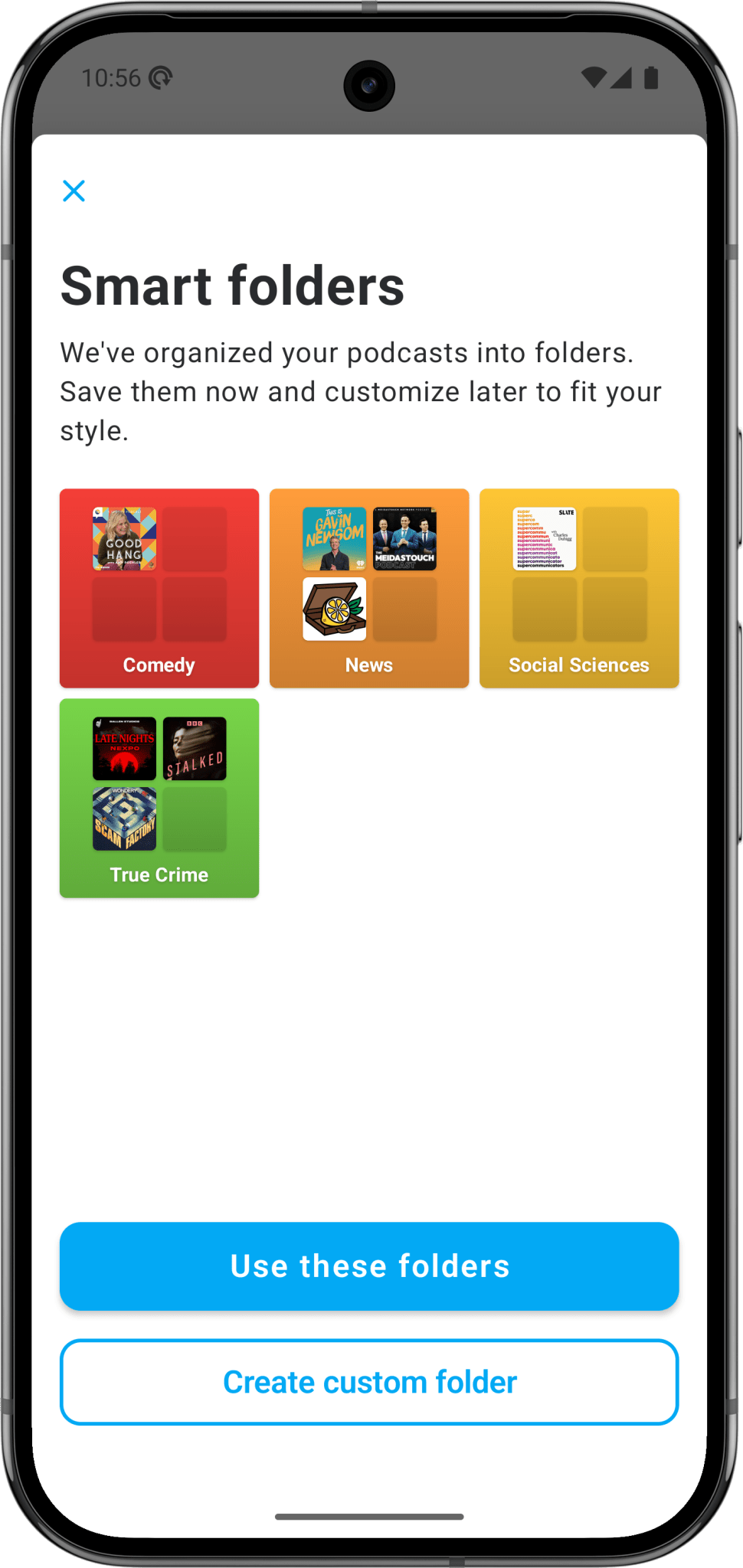
Once you’ve followed at least 8 podcasts, suggested folders will become available to you.
- Go to the Podcasts tab.
- If we’ve identified folders for you, a new Smart Folders screen will pop up.
- Tap the Use These Folders button.
To unlock this feature, you need to sign in with a Pocket Casts Plus account. Check out our Plus and Patron plans to access this feature.
After signing in to your Pocket Casts Plus account, tap the Use These Folders button again to apply the suggestions, and your podcast list will be automatically organized!
For Pocket Casts Plus users
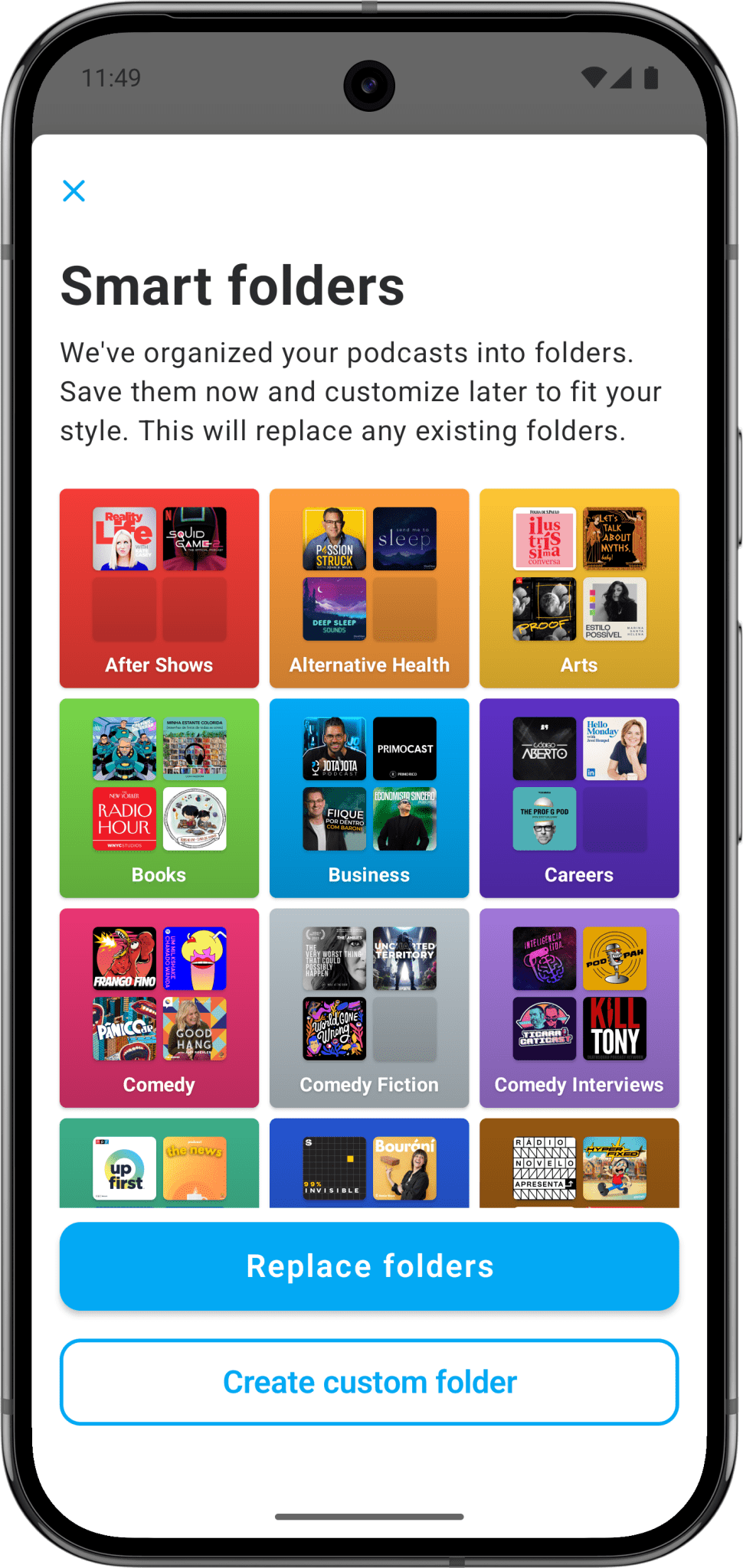
You need to follow at least 8 podcasts for our system to start suggesting folders. To check if our system has already identified folders for you:
- Go to the Podcasts tab.
- Tap to create a folder.
- If we’ve identified folders for you, the Smart Folders screen will appear.
- Tap the Replace folders button to organize your podcasts.
If you’d like to create a custom folder, simply use the Create Custom Folders button, and it will redirect you to the manual folder creation screen.
We hope you enjoy this new feature!



 Pocket Casts Blog